Web accessibility: content more people can use
Web accessibility means designing website content and functionality so people with disabilities can perceive, understand and use them. It concerns text, images, navigation, controls and technical implementation. It is not synonymous with mobile-friendly appearance or an automated test score.
Also known as: Accessibility · a11y
At a glance
- Accessibility concerns real people completing tasks, not only passing a checklist.
- Semantic structure, keyboard operation and clear labels work together.
- Automated checks help but cannot establish complete accessibility on their own.
On this page
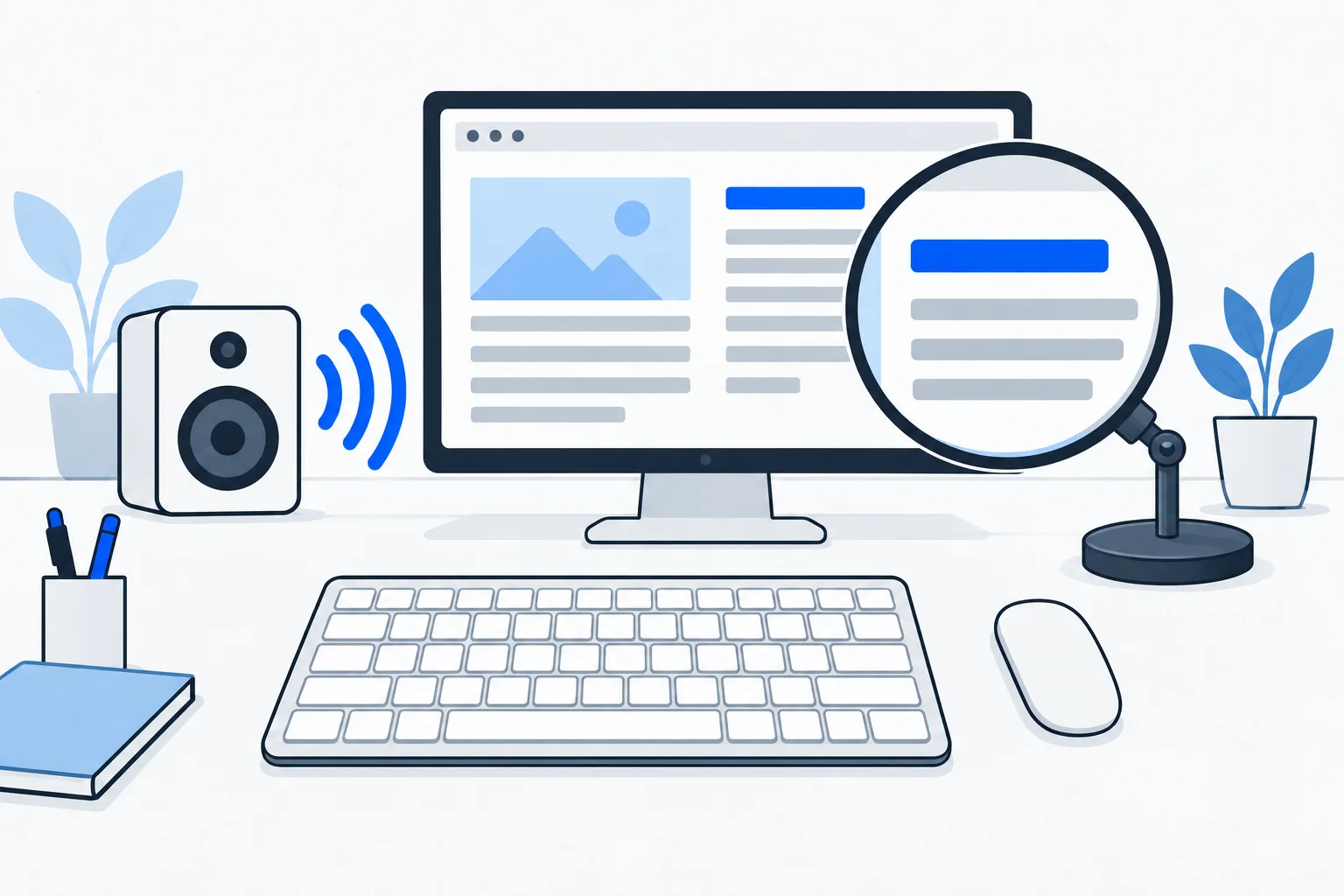
Different ways of using the web
People use screen readers, keyboards, magnified text and captions instead of audio. A page working for a sighted mouse user does not establish that it works in these situations.
W3C WAI begins with the needs of people with disabilities. Accessible design can also help in bright sunlight, with a temporary hand injury or in a noisy environment. The central purpose remains reducing actual barriers. Accessibility introduction
Text and semantic structure
Clear sentences, descriptive labels and a logical heading hierarchy support orientation. Colour, bold styling or capitalization alone may not communicate the same structure to assistive technology as appropriate HTML elements. Heading guidance
Anchor text should identify its destination. Ten links labeled “here” are less informative out of context than “warranty conditions” or “size chart.”
Semantic HTML makes those roles clearer: a heading identifies a section, a link leads to another address, and a button initiates an action. A generic clickable element styled as a button does not automatically receive a button’s keyboard behavior and meaning. Start with the appropriate element, then test the actual interaction.
Images, controls and forms
An informative image needs a suitable text alternative; decorative images have a different role. Decide from the image’s purpose rather than writing an equally long description for every picture. Image guidance
Buttons need recognizable names and behavior. Visible focus should indicate the current keyboard position, and controls should be operable without a mouse. Form labels and understandable error messages support completion; a red border alone may be insufficient. Form labels
Example: requesting a quote without a mouse
Imagine someone opening a service business’s enquiry dialog with a keyboard. Focus moves appropriately, field names can be read by assistive technology, errors identify missing information and submission produces understandable feedback.
If the dialog cannot be entered by keyboard, polished copy does not rescue the task. Test complete journeys rather than a single screen: barriers often occur between states.
Accessibility differs from SEO and performance
Clear website architecture and useful text alternatives can support several objectives, but an indexed page may still be difficult to operate with a screen reader. A fast page can still be confusing or inaccessible by keyboard.
Core Web Vitals measure other properties. A strong score cannot prove full accessibility. Automated accessibility tools may also miss an inaccurate image description or an incomprehensible form journey.
Verify actual tasks
Combine automated checks with keyboard use, magnification and important journeys using relevant assistive technology. Feedback from affected users can reveal barriers that code inspection misses.
Tie improvements to observable tasks: finding contact details, understanding a chart or submitting a form. A generic SEO check cannot establish legal compliance. Accessible content and functioning interactions need to be considered together.